

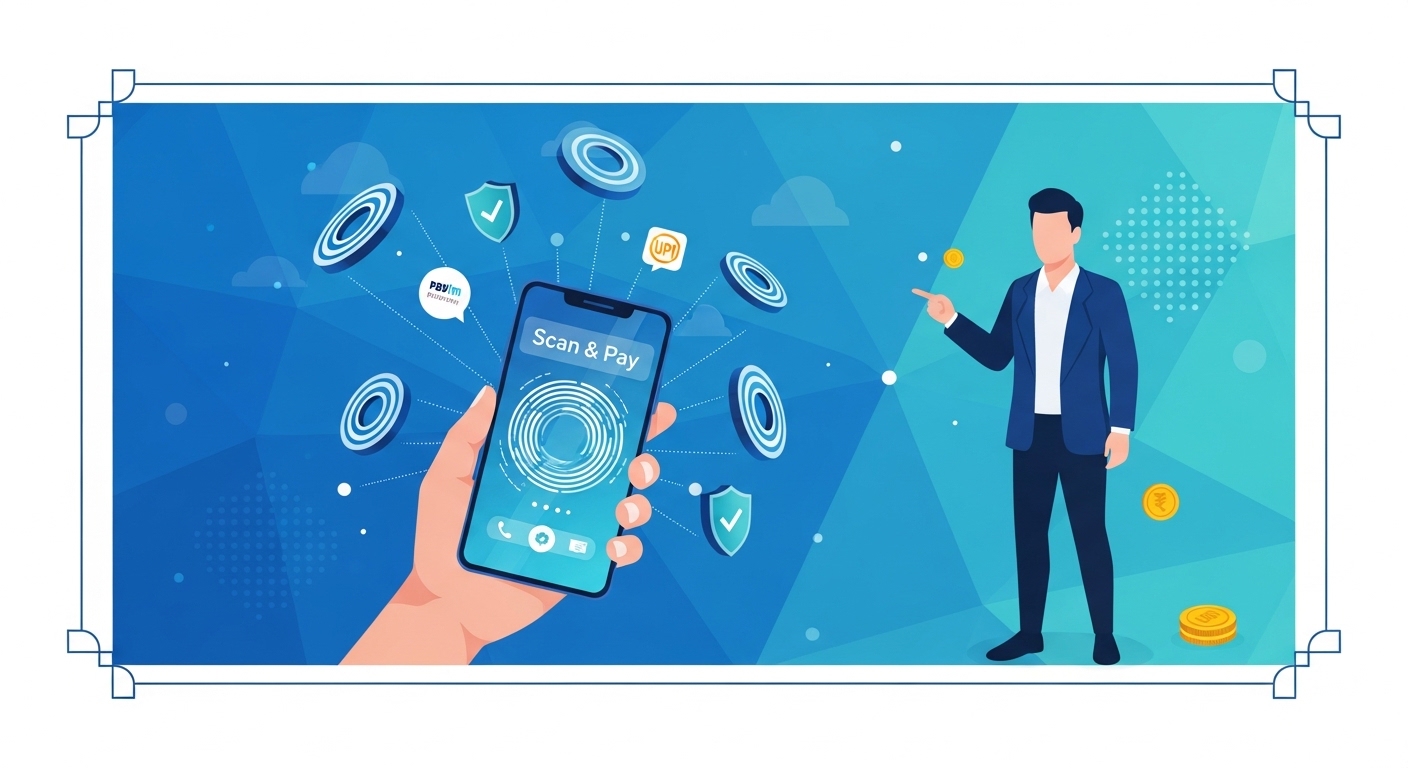
Many believe that using a quick access widget for payments is less secure than opening the full app for every transaction. Actually, these handy widgets use the exact same encryption and security protocols as the main payment application, simply offering a faster way to initiate your payments. You’re not compromising safety for speed when you use them.
This guide shows you how to set up and manage your payment app’s Scan & Pay widget directly on your Android home screen for ultra-quick access. You’ll learn the simple steps to make daily transactions quicker and more convenient, all while keeping your digital payments safe and secure in 2026.
Table of Contents
What Is Quick Access Widget on Android?
A quick access widget on Android provides a miniature, interactive view of an app’s key features directly on your home screen, enabling instant actions without fully opening the application. For payment apps, this typically means a one-tap shortcut to the ‘Scan & Pay’ function, which relies on the Unified Payments Interface (UPI) system governed by the National Payments Corporation of India (NPCI).
This mechanism allows users to quickly scan a QR code and complete a transaction, often within seconds. If you don’t utilise such quick access tools, you might find yourself repeatedly navigating through app menus, costing valuable time, especially during busy moments.
To maximise efficiency, consider exploring the widget options available within your payment app’s settings or your Android device’s widget selector.
Understanding Quick Access Widgets
You’re probably used to tapping an app icon to open it and then finding the feature you need. But what if you could skip a few steps and jump straight to paying?
That’s exactly what quick access widgets help you do, making your phone much more efficient for daily tasks. They are designed to save you time and make digital payments feel even smoother.
These widgets aren’t just static shortcuts; they’re interactive elements that live right on your home screen. They give you immediate access to specific functions of an app, like scanning a QR code for payment. This means less tapping and swiping when you’re in a hurry, which is incredibly useful for everyday transactions in India.
What is a Widget?
Think of a widget as a small, live window into an app’s most important function. It sits right on your phone’s home screen, showing you information or letting you perform an action without opening the full application. For example, a weather widget shows you the current temperature, and a payment widget lets you scan to pay instantly.
These mini-apps are different from regular app icons because they’re interactive and display real-time data or functions. They’re built to make your Android experience more personal and efficient. You can often resize them or move them around to fit your home screen layout perfectly.
Pro Tip: Customise Your Home Screen
Arrange your widgets and app icons strategically. Place your most used apps and widgets, like the Scan & Pay widget, within easy thumb reach for maximum convenience throughout your day.
Why Use Quick Access?
The main reason to use a quick access widget is speed and convenience. Imagine you’re at a busy market, buying vegetables, and you need to pay quickly. Instead of unlocking your phone, finding the payment app, opening it, and then tapping ‘Scan & Pay’, you can do it all in one tap from your home screen.
This instant access helps streamline your daily routine, especially when you’re making multiple small payments. It reduces the number of steps involved in a transaction, which can be a real time-saver. According to official guidelines, digital payments are increasingly prioritised for their efficiency and transparency in 2026.
How to Add the Widget to Your Home Screen
Adding a widget to your Android home screen is a straightforward process, designed to be user-friendly for everyone. You don’t need to be a tech expert to get this set up, and once it’s there, you’ll wonder how you ever managed without it. This simple setup can significantly enhance your daily payment experience.
The process usually involves a long press on your home screen, which then brings up options to customise your phone. From there, you’ll navigate to the widgets section, where you can find and select the specific widget you want to add. It’s all about making your phone work smarter for you.
Step 1: Find an empty spot on your Android home screen and press and hold your finger on it until a menu appears. You’ll typically see options like ‘Widgets’, ‘Wallpaper & Style’, and ‘Home Screen Settings’.
Step 2: Tap on the ‘Widgets’ option from the menu. This will open a list of all the available widgets from the apps installed on your phone. You might need to scroll through this list to find the one you’re looking for.
Step 3: Scroll down and find your preferred payment app in the list. Tap on it to expand the available widgets. Look for a widget specifically labelled ‘Scan & Pay’ or ‘QR Scan’.
Common Confusion: Direct Widget Access
A widespread myth is that you can just drag an app icon from your app drawer to create a widget.
This is incorrect; while dragging an app icon creates a shortcut, you must use the ‘Widgets’ menu on your home screen to add an actual interactive widget.
Step 4: Press and hold the ‘Scan & Pay’ widget icon, then drag it to your desired location on your home screen. As you drag, you’ll see a grey outline showing where the widget will be placed.
Step 5: Release your finger when the widget is in the perfect spot. After placing it, you might see handles appear around the widget, allowing you to adjust its size to fit your screen better. You can then tap outside the widget to confirm its placement and size.
Using Your Scan and Pay Widget
Once your Scan & Pay widget is comfortably placed on your home screen, initiating a payment becomes incredibly simple. You’re just one tap away from completing your transaction, which is a major convenience in today’s fast-paced world. This efficiency is a core benefit of modern digital payment systems.
The widget acts as a direct gateway, bypassing the need to open the full application and navigate through its menus. This streamlined approach not only saves time but also makes the entire payment process feel more intuitive. You’ll find yourself making payments with remarkable speed and ease.
Step 1: Tap the ‘Scan & Pay’ widget directly on your Android home screen. This single tap will instantly launch your phone’s camera, ready to scan a QR code. You’ll see the camera view appear on your screen, focused on the centre.
Step 2: Point your phone’s camera at the merchant’s QR code. Make sure the entire QR code is visible within the camera frame, and hold your phone steady for a moment. The app will automatically detect and scan the code.
Step 3: Once the QR code is scanned, the payment app will automatically open to the transaction screen, pre-filled with the merchant’s details. You’ll then need to enter the amount you wish to pay and confirm the transaction using your UPI PIN or biometric authentication. After successful payment, you’ll receive an instant confirmation on screen.
Quick Context: UPI Transaction Limits
According to official RBI/NPCI guidelines in 2026, the daily UPI transaction limit for most users is as per the latest official guidelines. However, specific banks or merchant categories might have different limits, so always check with your bank for precise figures.
Managing Your Widget on Android
Placing your widget is just the first step; knowing how to manage it ensures it continues to serve you effectively. Your home screen is a dynamic space, and you might want to move widgets around or even remove them if your needs change. Android gives you full control over these elements.
Understanding how to adjust your widget’s position or remove it is crucial for maintaining an organised and efficient home screen. You can easily adapt your setup as your daily routines or app usage evolves. This flexibility helps you keep your phone perfectly tailored to your preferences.
Moving Its Location
If you’ve placed your widget but later decide it would be more convenient in another spot, moving it is very simple. You can drag and drop it just like you would with an app icon. This flexibility allows you to optimise your home screen layout for maximum ease of use.
Step 1: Press and hold the ‘Scan & Pay’ widget on your home screen until it lifts slightly and you feel a small vibration. The widget will become movable, and other icons might shift to make space.
Step 2: Drag the widget to its new desired location on the home screen. You can move it to a different screen entirely by dragging it to the edge of the current screen.
Step 3: Release your finger when the widget is in its new position. You might see resize handles appear, allowing you to adjust its dimensions before tapping anywhere else on the screen to confirm.
Taking the Widget Off
There might come a time when you no longer need the Scan & Pay widget, or you want to free up space on your home screen. Removing it is as easy as adding it, ensuring your home screen stays clutter-free and functional. This helps you maintain a personalised and efficient device.
Step 1: Press and hold the ‘Scan & Pay’ widget on your home screen until it becomes movable. You’ll notice options appear, typically at the top or bottom of the screen.
Step 2: Drag the widget towards the ‘Remove’ or ‘X’ icon that appears. This icon is usually located at the top of the screen.
Step 3: Release your finger over the ‘Remove’ icon. The widget will instantly disappear from your home screen, but the app itself will remain installed on your phone.
Common Confusion: Widget Uninstallation
It is commonly assumed that removing a widget also uninstalls the app it belongs to.
This is incorrect; removing a widget only takes it off your home screen; the full application remains installed on your device.
Tips for an Easy Payment Experience
Ensuring your payment experience is always smooth goes beyond just having a widget. A few simple practices can prevent common hiccups and keep your digital transactions flowing effortlessly. You’re in control of optimising your payment setup for reliability.
These tips focus on maintaining your app’s performance and understanding its permissions, which are crucial for secure and efficient operation. By following these guidelines, you can minimise disruptions and enjoy truly ultra-quick payments.
Updating Your Payment App
Keeping your payment app updated is one of the most important things you can do for a smooth experience. Updates often include bug fixes, security enhancements, and performance improvements that make the app run better. You’ll get the latest features and protection against potential vulnerabilities.
Regular updates ensure compatibility with the latest Android operating system versions and banking protocols. It’s a simple step that significantly contributes to the reliability and security of your transactions. Always check for updates in your phone’s app store.
Checking App Permissions
For your Scan & Pay widget and the main app to function correctly, they need certain permissions, especially access to your camera. If these permissions are denied, the scan function won’t work, leading to frustration. You need to ensure the app has the necessary access.
You can check and adjust app permissions through your phone’s settings. Go to ‘Apps’ or ‘Applications’, find your payment app, and then look for ‘Permissions’. Make sure ‘Camera’ access is granted for scanning QR codes.
| Common Payment App Issues | Possible Cause | Quick Solution |
| QR Code Not Scanning | Camera permission denied or poor lighting | Grant camera permission; ensure good lighting |
| Transaction Pending | Network issue or bank server delay | Check internet connection; wait 30-60 mins for auto-reversal |
| App Crashing | Outdated app version or full phone storage | Update app; clear cache or free up space |
| Widget Not Appearing | App not updated or Android version incompatibility | Update app; restart phone |
Solving Common Problems
Even with the best setup, you might occasionally encounter an issue. Don’t worry; most common payment problems have straightforward solutions. You can usually resolve these quickly without needing to contact customer support immediately.
A common problem is a transaction getting stuck as ‘pending’. This often resolves itself automatically within a few minutes or hours, as per official NPCI guidelines.
If funds are debited but not credited, NPCI mandates an automatic reversal within one business day (T+1) in 2026. If a reversal doesn’t happen within three business days, raise a dispute through your app.
Pro Tip: Network Stability Check
Before initiating a payment, quickly check your internet connection. A stable network, either Wi-Fi or mobile data, is crucial for successful and swift digital transactions, preventing unnecessary delays.
The Benefits of Ultra-Quick Payments
Adopting the Scan & Pay widget isn’t just about convenience; it brings a host of tangible benefits to your daily financial interactions. You’re not just saving seconds; you’re enhancing your overall payment experience and embracing a more efficient digital lifestyle. This simple addition can significantly improve your day.
These benefits extend from practical time-saving to increased security and a simplified approach to managing your finances. In an increasingly digital world, making your payments as effortless as possible is a clear advantage. You’ll appreciate the seamlessness it brings to your transactions.
Faster Daily Transactions
The most immediate and obvious benefit is the sheer speed at which you can complete transactions. Whether you’re paying for groceries, fuel, or a quick snack, one tap on your home screen gets you to the payment stage instantly. You won’t be fumbling through menus while a queue builds up behind you.
This efficiency is especially valuable in busy environments where speed is key. It reduces friction in your daily purchases, making digital payments truly feel like a faster alternative to cash. You’ll find your payment process is noticeably quicker.
Enjoying Secure Payments
Despite the speed, you’re not compromising on security. The Scan & Pay widget uses the same robust encryption and security protocols as the full payment app.
Your UPI PIN or biometric authentication is still required to authorise transactions, ensuring your funds are protected. You can pay with confidence knowing your details are safe.
According to the Ministry of Home Affairs (2026), digital security is a national priority, with continuous efforts to safeguard online transactions. This means every layer of your payment app, including its widgets, is built with security in mind. You’re using a trusted system for your money.
Simplifying Your Payment Process
The widget streamlines the entire payment process, making it less complex and more intuitive. By reducing the number of steps required, it simplifies what might otherwise feel like a multi-stage operation. You’re taking complexity out of your daily financial interactions.
This simplification encourages more frequent use of digital payments, helping you track your spending more easily than with cash. It makes managing your money feel less like a chore and more like a natural part of your day. You’ll find your payment routine becomes much easier.
Common Confusion: Widget Security
The misunderstanding here is that a quick access widget bypasses payment security measures.
This is incorrect; the widget only provides quick access to the scanning feature, and all security steps, including PIN entry, remain fully intact for every transaction.
Conclusion
Customising your Android home screen with the Scan & Pay widget offers a powerful way to enhance your daily payment efficiency. Setting up this widget takes only a few moments, yet it significantly speeds up your transactions, allowing you to pay with a single tap. You’ll benefit from faster checkouts and a more streamlined digital payment experience, all while maintaining the highest levels of security in 2026.
How to Enable Scan & Pay Widget on Paytm App (Android Users)
Author

