

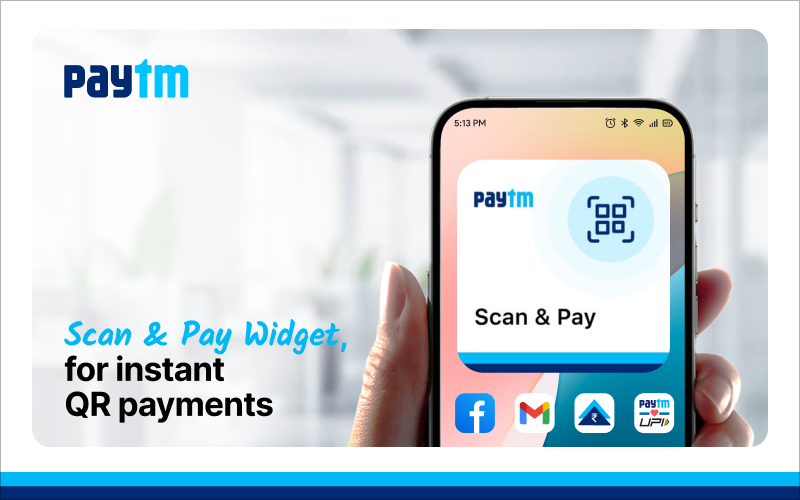
Paying via UPI QR codes is now a daily habit for millions of users. To make the process even faster, Paytm allows you to add a Paytm scan shortcut to the home screen—giving you instant access to scan and pay without opening the app manually.
This blog walks you through how to add Paytm scan shortcut to home screen, its benefits, and how the Paytm quick scan feature enhances convenience in everyday transactions.
Why Use the Paytm Scan Shortcut?
The Paytm scan shortcut helps save time, especially when you need to make quick payments at stores, vendors, or during travel. With just one tap, your QR scanner opens—ready for instant use. It’s also one of the many ways how Paytm helps in money management by simplifying daily financial tasks. The specific presentation of this feature on the home screen may be optimized based on user preferences and usage patterns.
Method 1: Add Paytm Scan Shortcut to Home Screen via Money Transfer Section
Here’s the first way to add the Paytm scan shortcut to home screen:
- Open the Paytm app
- Navigate to the Money Transfer section
- Tap “Add Scan Shortcut”
- A pop-up will appear. Tap “Add”
- The Paytm scan shortcut will then be visible on your home screen
This shortcut opens the QR scanner directly, helping you complete transactions in seconds using the Paytm quick scan feature.
Method 2: Add Paytm QR Scan Shortcut via Profile Menu
Another way to access the Paytm QR scan shortcut:
- Open the Paytm app
- Tap your initials or profile icon in the top-left corner
- Tap “Add Scan Shortcut”
- When prompted by the pop-up, tap “Add”
- The Paytm scan shortcut will then be added to your home screen
Method 3: Add a Receive Money QR Widget on Android

Step 1: Open the Paytm app
Step 2: Tap your profile icon in the top-left corner to open the flyout menu
Step 3: Tap the “Add QR to Homescreen” button located below your QR code
Step 4: Upon confirmation, the QR widget will be added to your phone’s home screen
Step 5: After closing the Paytm app, you will see the QR widget on your home screen
Step 6: You can then simply display the QR widget to receive money instantly, without needing to open the app
Step 7: A coin-drop notification sound will alert you whenever a payment is received.
Step-by-Step: How to Enable the ‘Receive Money QR’ Widget on iOS
Step 1: Unlock your iPhone and long press on the Home Screen
Step 2: Tap the ‘Edit’ icon in the top-left corner
Step 3: Search for ‘Paytm’ in the widget list, then swipe to find the ‘Receive Money QR’ widget
Step 4: Tap ‘Add Widget’ to place it on your Home Screen for quick access
Benefits of Paytm Quick Scan Feature
- Instantly access the scanner without entering the full app
- Avoid delays during time-sensitive payments
- Use a clean, lightweight shortcut that saves taps
- Make your smartphone a faster payment tool
Conclusion: The Paytm scan shortcut and receive money widgets offer enhanced convenience for UPI transactions. By adding these direct links to your home screen, you can quickly scan and pay or easily receive payments. Features like the coin-drop alert and one-tap access redefine mobile payment convenience, making daily financial tasks faster, smarter, and more organized for everyone, from daily commuters to busy shoppers.
What is the Paytm Scan Shortcut?
Author

